Sending feedback
Tell us about a request, a problem, a question or a complaint from inside the app — with screenshots and, for a problem, a HAR file — and find our answer there.
You can write to us from wherever you are in the app: a request or an idea, something that does not work, a question or a complaint. It reaches the people who build Heimdall, and the answer comes by e-mail. Every user can send feedback, whatever their role and plan.
Send it
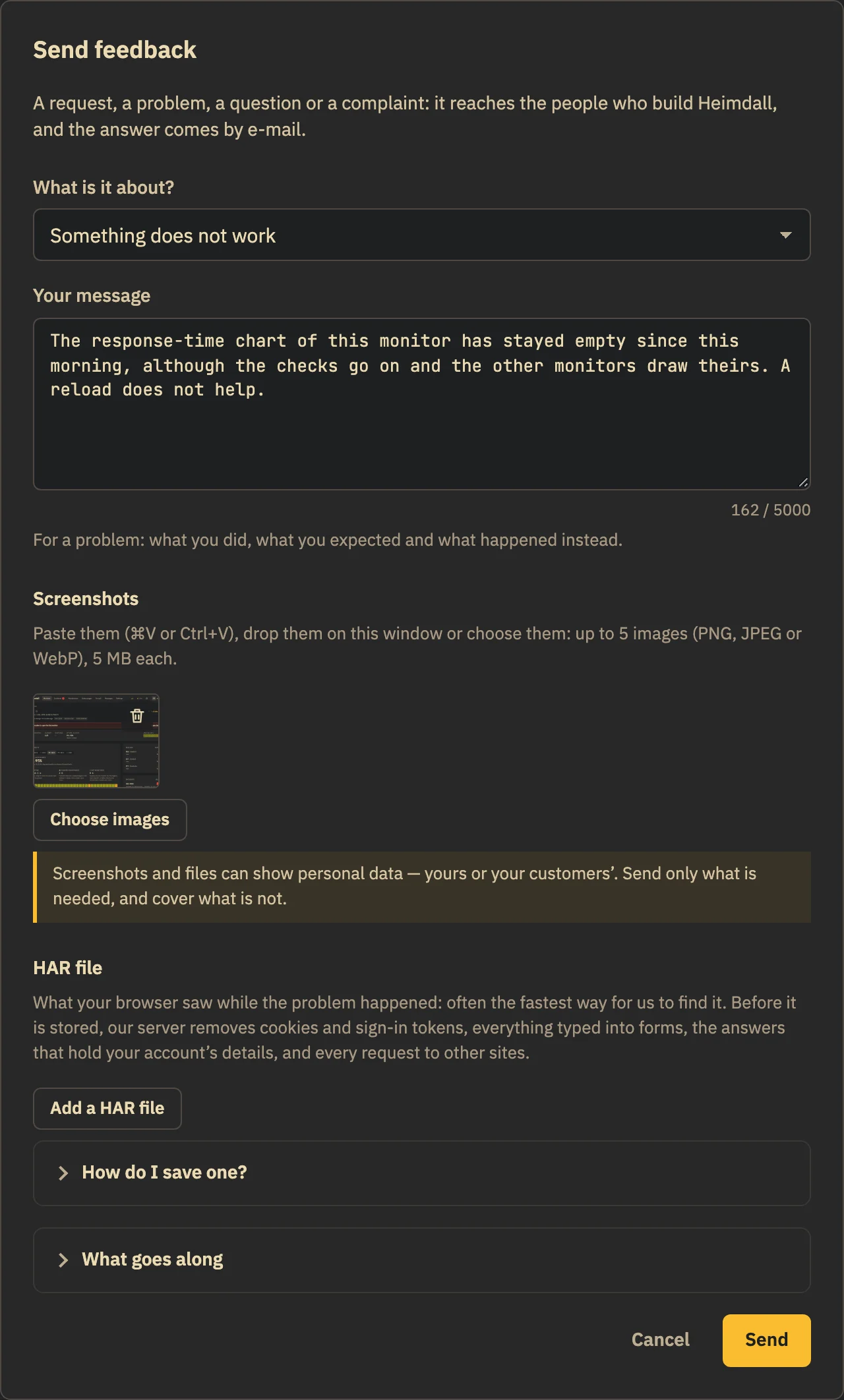
- Open the help menu — the “?” at the top right — and choose “Send feedback”. (It is also in the account menu, and on the page the app shows when something breaks.)
- Choose what it is about, and write your message. For a problem, say what you did, what you expected and what happened instead.
- Add screenshots if they help: paste them (⌘V or Ctrl+V), drop them on the window, or choose them. Up to five images, PNG, JPEG or WebP, 5 MB each.
- For a problem you can add a HAR file too (see below).
- Choose “Send”. You get an e-mail with the feedback’s number, for example FB-0042.
What goes along
So that we see what you saw, the app adds the page you were on (not its address’s parameters), your organisation and plan, your role, the browser, the language, the time zone and the screen size. It also sends its recent activity: the last 50 requests it made to our server — which part of the API, the status of the answer, how long it took and its number — and the last errors it caught; never what was in them. You can see all of it under “What goes along” before sending, and untick the recent activity.
A HAR file, for a problem
A HAR file is what your browser saw while the problem happened, and often the fastest way for us to find it. Save one in the browser’s developer tools: open them (F12, or ⌥⌘I on a Mac), choose Network, reload the page and do again what went wrong, then export: “Export HAR” in Chrome and Edge, “Save All As HAR” in Firefox, “Export” in Safari (turn on “Show features for web developers” under Settings › Advanced first). Then choose “Add a HAR file” in the dialog. Up to 20 MB.
A HAR file holds more than the problem: your session, what you typed into forms, requests to other sites. Before it is stored, our server removes cookies and sign-in tokens, every request’s body, the answers that hold your account’s details, values in addresses that look like keys or tokens, and every request to a site other than Heimdall. Only the cleaned file is kept.
Our answer
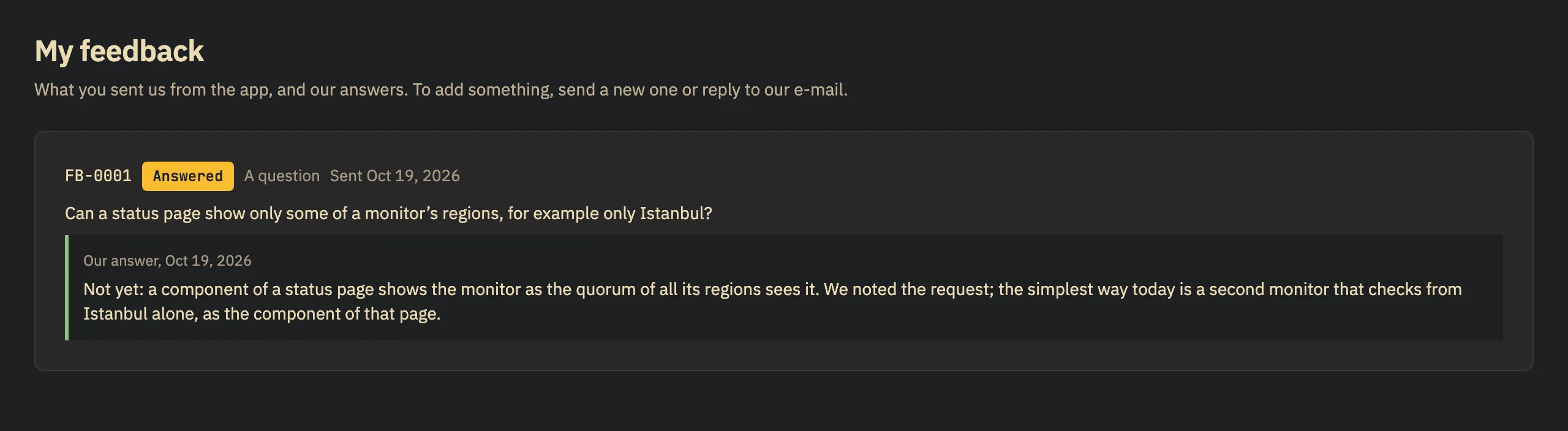
We answer by e-mail; reply to it to write back. Everything you sent and our answers are under Help › My feedback.