
Planned maintenance
Maintenance windows on monitors: muted alerts, uptime that leaves the window out to the second, repeating windows and status page announcements.
A maintenance window tells Heimdall that work is planned. It belongs to the organisation and covers monitors: the ones you choose directly, and the ones behind the components of a status page it is announced on. Plan a window under Maintenance in the app, or from a monitor’s page.
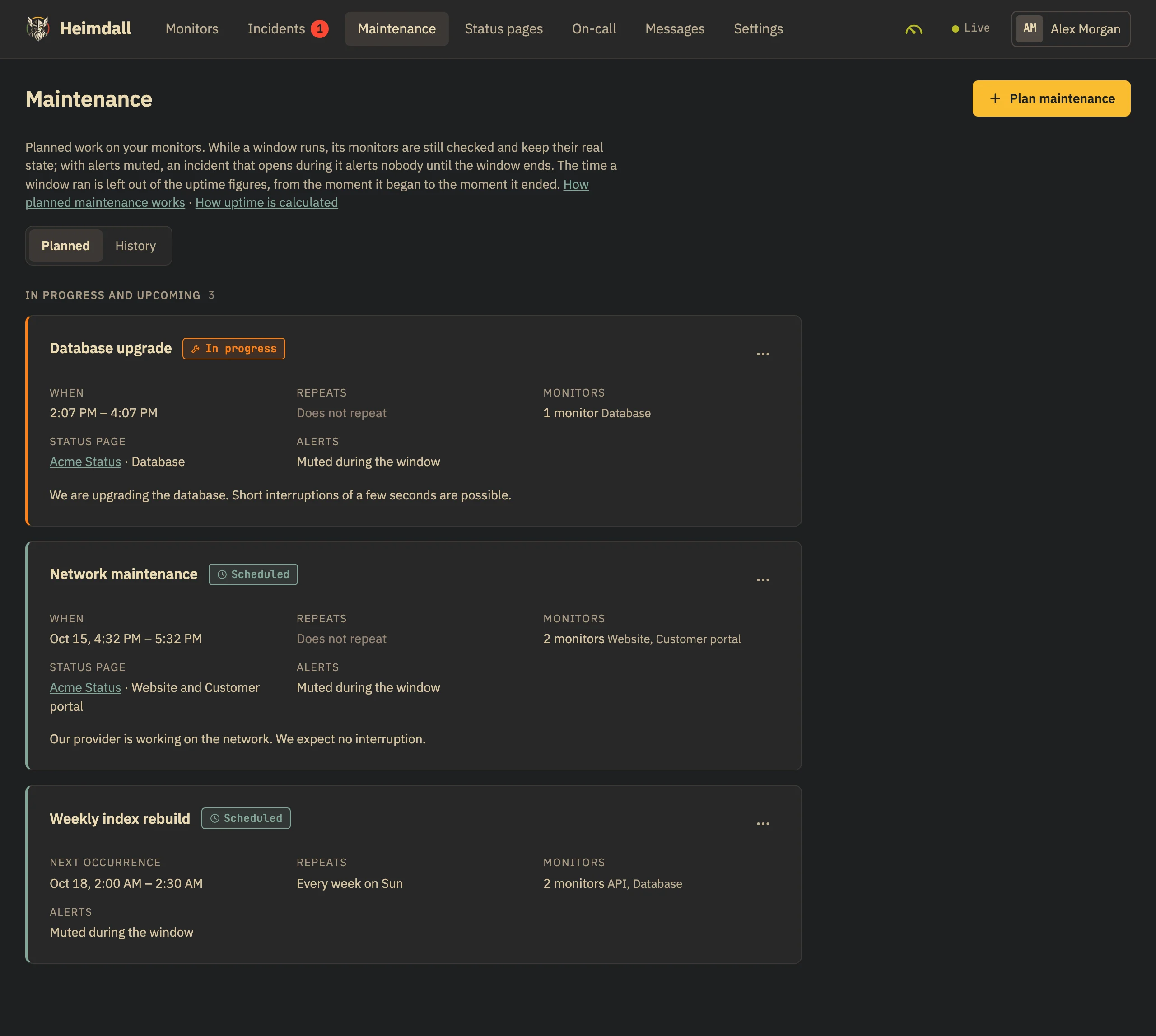
While a window runs
- Covered monitors are still checked and keep their real state. The app shows “Maintenance” next to that state, with the window and when it ends
- With Mute alerts on (the default), an incident that opens during the window is recorded but alerts nobody
- If that incident is still open when the window ends, the alerts start then
- An incident that was already open before the window began keeps alerting
Uptime
The time a window ran is left out of uptime figures exactly, from the moment it began to the moment it ended — in the app and on status pages. A window from 14:10 to 14:20 takes ten minutes out; an outage at 14:40 in the same hour counts. An outage that began before a window and is still there after it is one outage, and what of it lay inside the window does not count; a monitor that was down only inside a window had no outage.
On the bars a day keeps the colour of what happened on it and shows the maintenance as a blue slice at its foot; a day of which nothing but maintenance is left is blue altogether — neither an outage nor a day without data. See How uptime is calculated.
Repeating windows
| Repeat | Runs |
|---|---|
| Every day | at the time of the first occurrence |
| Every week | on the weekdays you choose; the weekday of the first occurrence is always one of them |
| Every month | on the day of the month of the first occurrence; a shorter month has it on its last day |
The start and end you enter are those of the first occurrence; the app shows the running or next one. A repeating window keeps its clock time in the time zone it was planned in — yours, when you plan it — also when the clocks change. Until is optional: no occurrence starts after that day, and without it the window repeats until you delete it.
Limits
- A window lasts at most 30 days, and a repeating one must end before its next occurrence starts
- A window may have started up to 24 hours ago; one that is already over cannot be planned
- A window covers at least one monitor or is announced on a status page, and names at most 500 monitors directly
- Members, admins and the owner plan, change and delete windows; viewers read them
Announcing on a status page
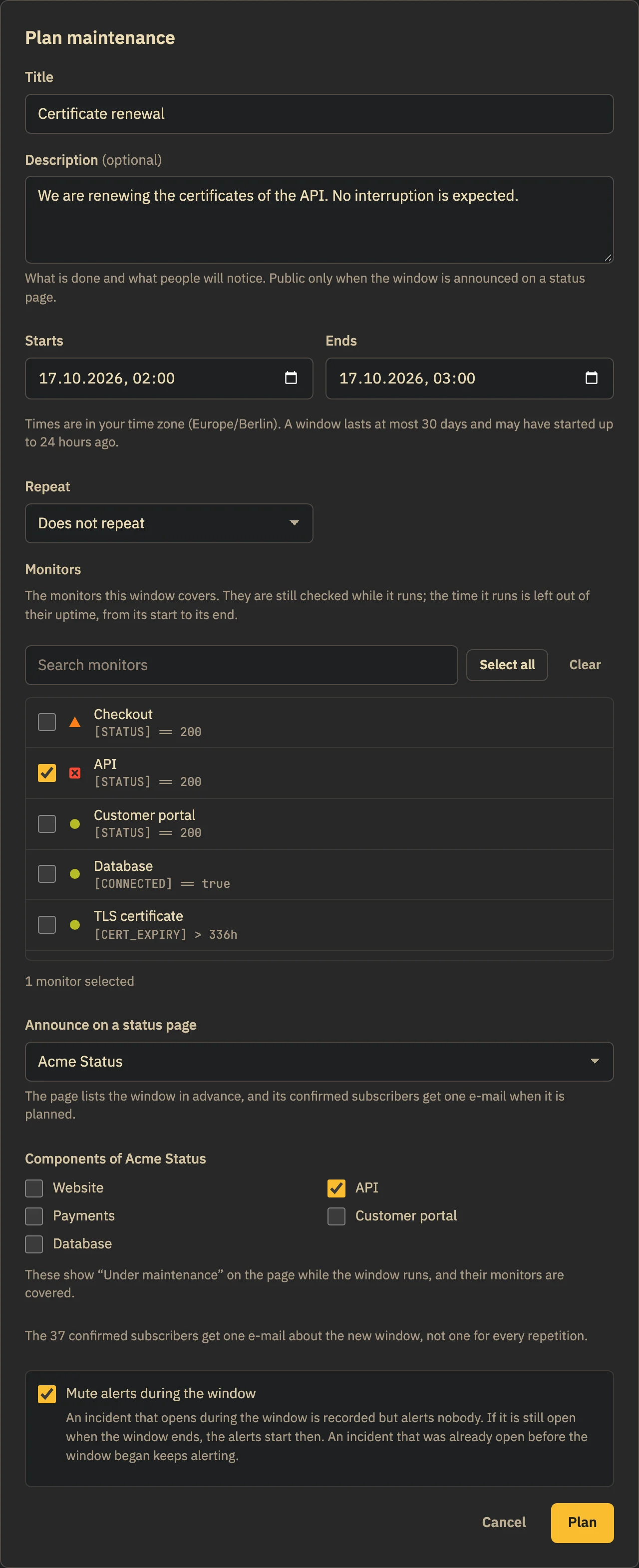
Choose a status page and the window is listed there in advance. The components you choose show “Under maintenance” while it runs, and their monitors are covered. The page’s confirmed subscribers get one e-mail when the window is planned, not one for every repetition. The description is public only when the window is announced.
Deleting and history
Deleting a running window ends it now. What ran stays in the history — one entry per occurrence, with the monitors it covered — and out of the uptime figures, even after the window is edited or deleted. The app lists the occurrences of the last 90 days.